The Backrooms With Guns Controls Cheatsheet
Every keybind beginners ask for — plus why Shift sprint sometimes fails.
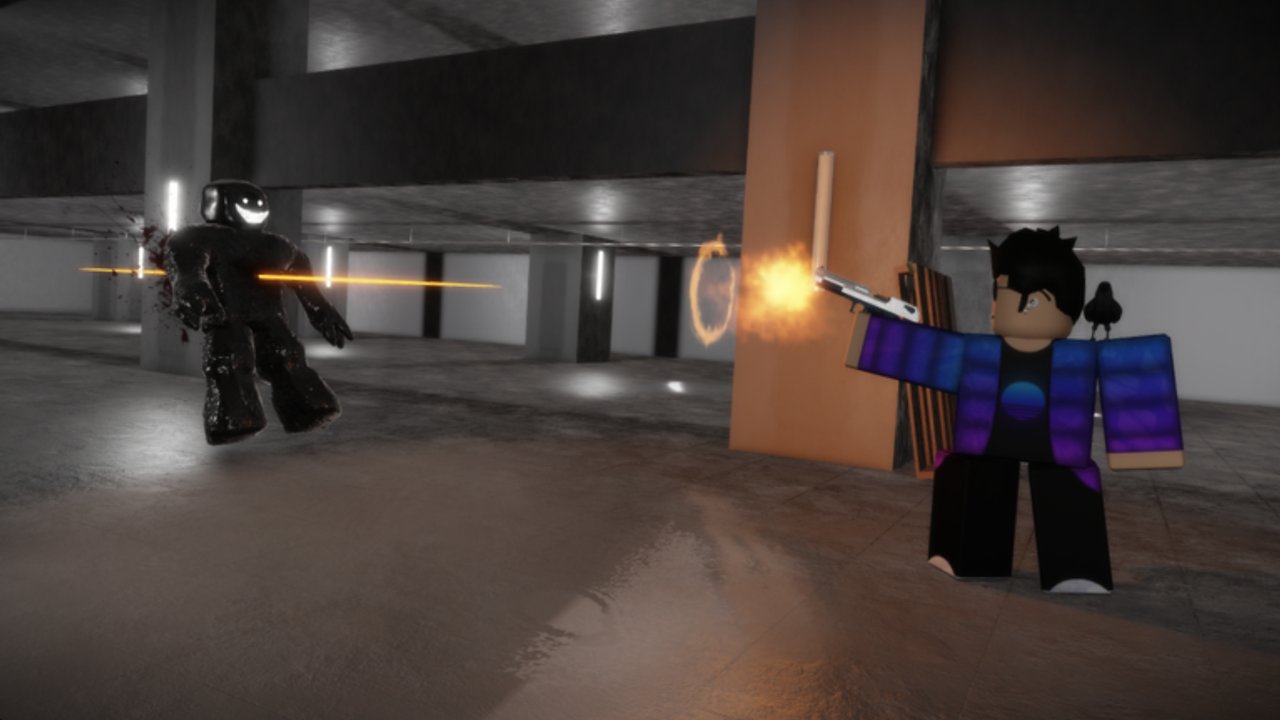
This controls reference lists the published movement and utility binds for The Backrooms With Guns on keyboard and controller. Keep it open beside Getting Started during your first Classic session.
Core binds
| Action | Keyboard / mouse | Controller |
|---|---|---|
| Move | WASD / thumbstick | Left stick |
| Look | Mouse | Right stick |
| Sprint | Shift | Thumbstick Down (click left stick) |
| Crouch | Control or C | Button B |
| Flashlight | F | D-Pad Up |
| Hide UI | H | H / bound UI key |
| Interact | E (Roblox default) | Interact button |
| Fire | Mouse click / hold | Trigger |
Exact interact/fire labels follow Roblox defaults if Floridoit does not remap them. If a prompt appears, press the on-screen key.
Why these four matter most
- Sprint — Lobby rotates, Level ! chase segments, Giant Smiler knockback recovery.
- Crouch — Tight props, occasional peeking, reducing profile in PvP.
- Flashlight — Smilers and Insanities punish dark wings; Stormy Office damaged section is brutal without light.
- Hide UI — Cleaner screenshots and less HUD clutter during chase focus.
Mode-specific tips
Classic: Sprint freely; infinite stamina-style play with infinite health/ammo means movement errors are learning, not bricks.
Survival: Flashlight + ammo discipline. Crouch less if it slows escapes from Hounds.
PvP: Crouch and aim matter more; still remember PvP kills do not unlock shops.
Level !: Guns gone — pure movement. Practice sprint lines before crowbar entry (Level !).
Troubleshooting
| Problem | Fix |
|---|---|
| Shift does nothing | Disable Shift-lock toggle habits; click game window; rebind conflicts in Roblox settings |
| Flashlight won’t open | Press F once; check if UI hidden state is weird; rejoin |
| Can’t interact with crowbar/door | Hold E on the prompt; confirm item in inventory |
| Controller sprint awkward | Click left stick (Thumbstick Down) deliberately |
| UI stuck hidden | Press H again |
Accessibility
The game warns about flashing lights and photosensitive risk. Lower graphics, enable performance mode on weak devices (per official description), and avoid prolonged strobing blackout fights if sensitive. Volume cues help during nuke sirens.
Related tools & guides
Scripts note
Movement “speed / noclip / fly” toggles from ESP scripts are exploits and can ban you. Learn legitimate binds instead.
Master Shift, C/Ctrl, F, and H before you obsess over Golden Eagle. Most early deaths are flashlight and sprint mistakes, not missing a legendary gun.
Settings hygiene on Roblox
Check platform shift-lock, camera mode, and mobile buttons if you tab between devices. TBWG on a phone needs careful sprint/crouch placement so thumbs do not mute flashlight. On console, confirm Thumbstick Down sprint is comfortable or adjust sensitivity so chase cameras stay readable.
When recording guides, Hide UI (H) cleans the frame, but remember to restore HUD before shop buys so you can see prompts. In Level !, HUD hide can help focus; in nuke sirens, you may want HUD visible for quick weapon swaps afterward.
If binds ever change in a future patch, update this page in the same PR as Getting Started so onboarding never drifts from the cheatsheet.
Drill: flashlight under stress
In Classic, sprint a dark hallway, toggle F on rhythm, crouch once, sprint again, then Hide UI and restore with H. Repeat until it is automatic. That micro-drill pays off in damaged Stormy Office, Level ! approaches, and post-nuke blackouts more than any exotic bind. Teach teammates the same four keys before a badge tour.
Frequently Asked Questions
Quick answers about codes, escapes, weapons, and badges.
What key is flashlight?
F on keyboard, or D-Pad Up on controller.
How do I sprint?
Hold Shift on keyboard, or click Thumbstick Down on controller.
How do I hide the UI?
Press H. Press H again to restore HUD elements.
Why can’t I sprint with Shift?
Shift-lock or focus issues are common. Click into the game and disable conflicting Shift-lock behavior.